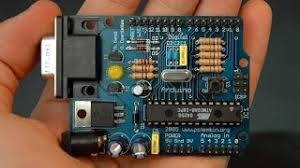
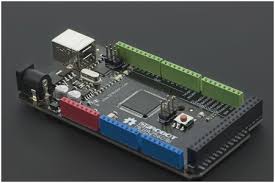
In this article I will discuss how to simulate circuits with Arduino microcontroller on Proteus(arduino simulation in Proteus). You will learn how to download the proteus arduino library and simulate the codes build in Arduino IDE on Proteus with additional circuits for example diodes, led, transistors and motors etc. So keep reading and enjoy learning
Proteus Software:
Proteus is a very popular software for simulating the circuit in addition it also provides the flexibility for PCB designing. Proteus can also be very efficiently used for simulating the circuits with Arduino development board as the microcontroller. But Proteus does not have built-in library for Arduino so we have to download the arduino library for proteus first. Then we will follow the standard approach for simulating the circuit.
proteus simulation is a very useful way of imitating the behavior that your physical circuit is intended to show so, by simulating the circuit we can look for any glitches in the code or short circuits in the circuit before actually implementing it. So simulation both saves time and money. As I have mentioned earlier we need to download the arduino proteus simulation for Arduino circuits. I will discuss here steps for proteus arduino download and installing it in the Proteus. Open the Proteus and the software is ready to be used for simulating Arduino based circuits.
Creating the HEX file:
Once you have written the code in Arduino IDE you need some way to simulate this program in Proteus. This can be done by creating the HEX file of the code and then using this HEX in the Proteus for arduino library simulation. I am discussing here the process for creating the HEX file.
arduino hex file Step 1:
Open your Arduino IDE, click on the File, go into preferences and check the boxes with compilation and uploading.
Step 2:
When you have check the boxes highlighted in the above write the code and then compile.
Step 3:
Once you have compiled the code by clicking the Verify button at the top left corner of the Arduino IDE. The Arduino IDE will automatically create the HEX file and give the link of it at the bottom.
Step 4:
Go to the link as specified by your Arduino IDE and you can find your HEX file there.
Setting the HEX file in Proteus:
After you have made the HEX file it should be in some way given to the Proteus so that Proteus can use this HEX file to simulate the code and thus simulate the circuit. I am discussing here the steps for setting the HEX file in Proteus.